
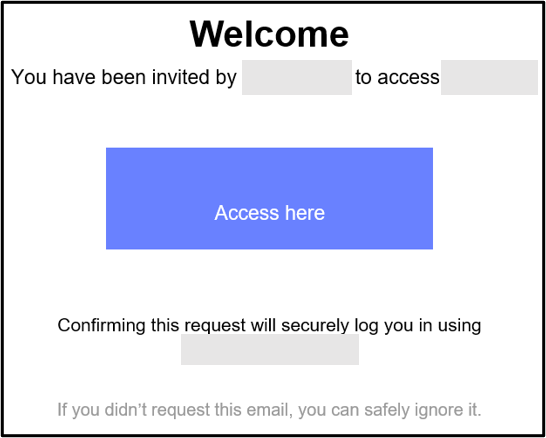
- You will receive an email invitation from your admin. Click the Access here link to start registration
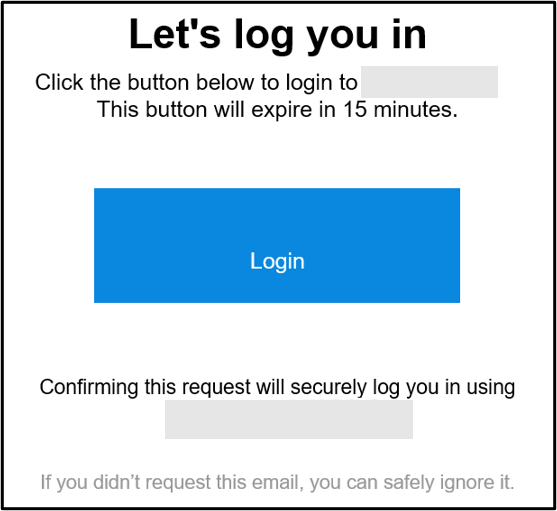
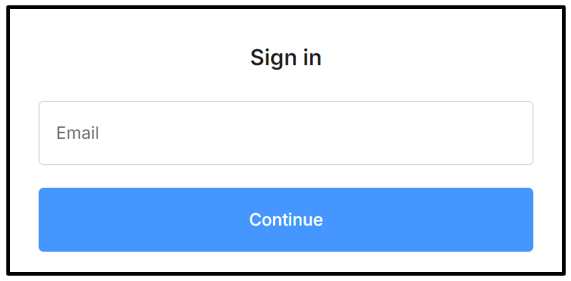
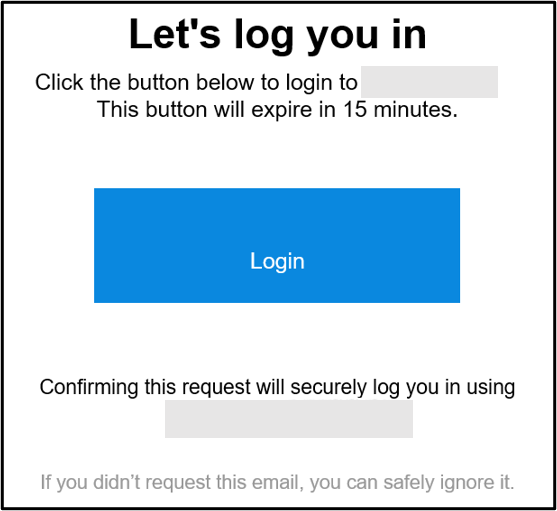
- You will be asked to enter your email address, and an email will be sent to your mailbox. Go to your mailbox and click the Login link.
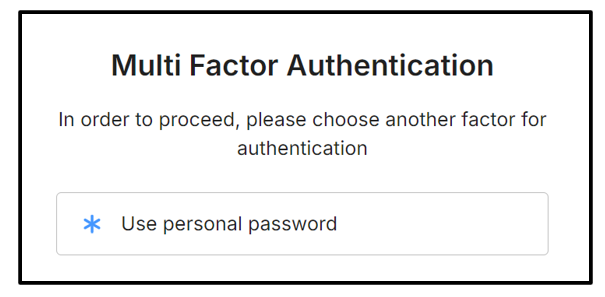
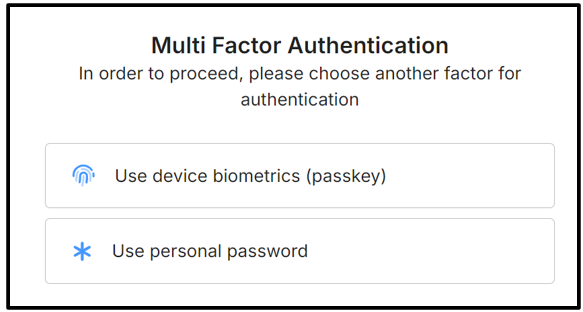
- You will be prompted to select another factor, select Use personal password.
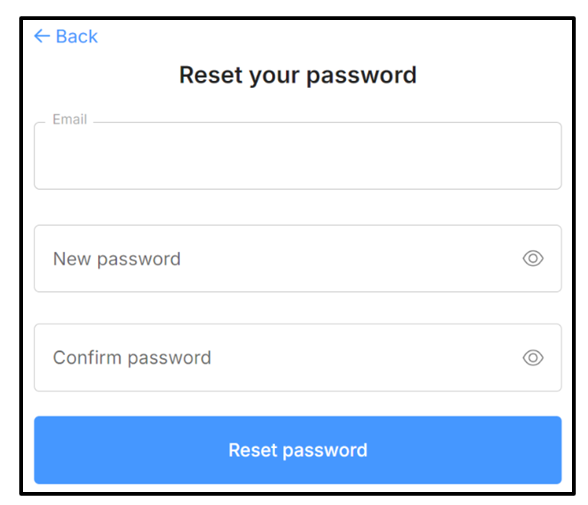
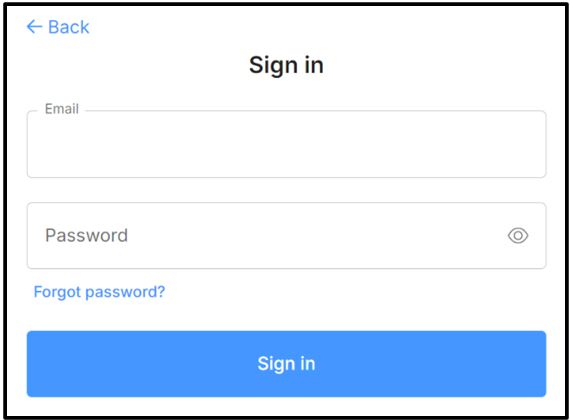
- Enter the temporary password (provided by your admin) and then create a New password. Registration is complete once you click Reset password.
- You will be asked to enter your Email address and Continue, and an email will be sent yo your mailbox.
- Go to your mailbox and click the Login link.
- You will be prompted to select another factor. Assuming you have not set up a passkey yet, select Use personal password.
- Enter your Password and select Sign in. This completes successful login.
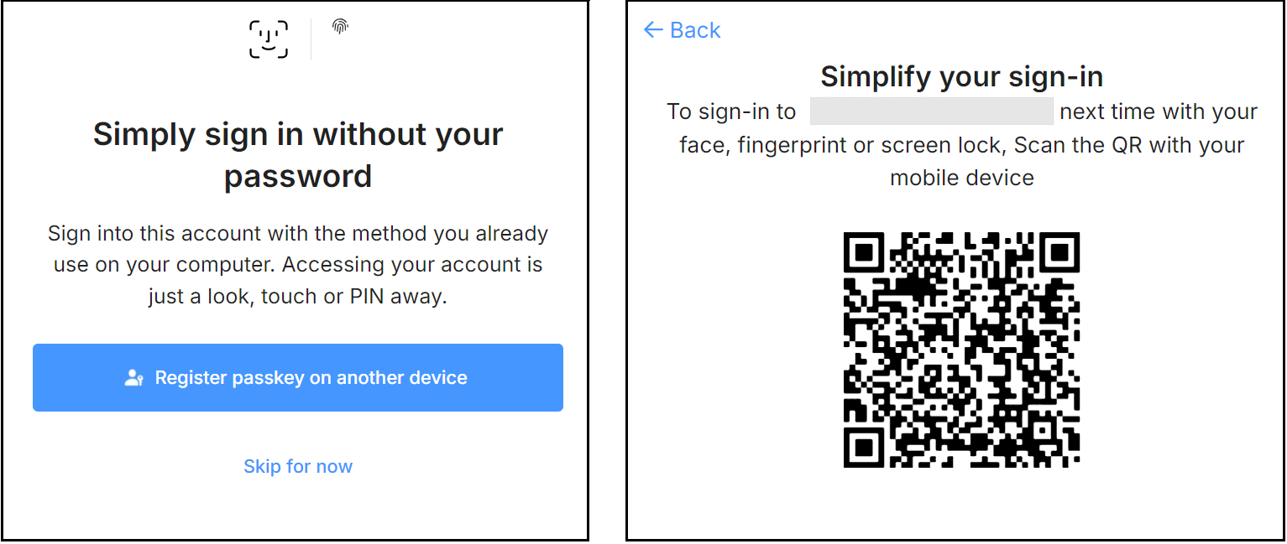
After a successful login, you can set up a passkey. Select Skip for now to do it later or follow the instructions below:
To setup the passkey on your mobile device:
- Click Register passkey on another device.
- Scan the QR Code with your mobile device camera.
- Follow the instructions on your mobile device to setup the passkey.
With the passkey set up, you can “Use Device biometrics (passkey)” for MFA as per Step 3 in the Login Process.